
Integrations
Set up Slack notifications
Route app installs, trials, and subscription lifecycle notifications to one or more Slack channels.
Last updated
Fusionmetrics can send a Slack message shortly after it observes an app install, uninstall, trial, or subscription lifecycle change. Each Slack incoming webhook connects one Fusionmetrics destination to one Slack channel. Add multiple destinations to route different Apps to different channels.
You need permission to create or install a Slack app in the destination workspace. In hosted Fusionmetrics, you must also be an Organization admin. Self-hosted Fusionmetrics uses the same connection flow for its single organization.
Create a Slack app
Open Your Apps in the Slack API dashboard, then:
- Select Create New App.
- Choose From scratch.
- Enter a recognizable name such as
Fusionmetrics Notifications. - Select the Slack workspace that should receive the notifications.
- Select Create App.
The Slack app only needs the incoming-webhook capability for this integration. Fusionmetrics does not need permission to read channels, messages, members, or workspace data.
Enable incoming webhooks
In the Slack app configuration, open Features → Incoming Webhooks and turn Activate Incoming Webhooks on.
Slack creates a separate webhook URL for each authorized channel. Select Add New Webhook to Workspace, choose the destination channel, and approve the request with Allow.
Private channels must already include the person who authorizes the webhook. If the intended channel is missing from Slack's selector, join that channel and try again.
Copy the webhook URL
Return to Incoming Webhooks and find Webhook URLs for Your Workspace. Copy the URL for the intended channel. It has this shape:
https://hooks.slack.com/services/REDACTED/REDACTED/REDACTED
Treat the complete URL as a credential. Anyone who obtains it can post to that Slack channel. Do not put it in source control, tickets, screenshots, chat messages, or application logs.
If a webhook is exposed, remove or revoke it in Slack and replace the destination in Fusionmetrics with a newly authorized webhook.
Connect Slack in Fusionmetrics
Open Settings → Integrations, find Slack under Notifications, and select Add destination. Then configure:
- Name: an optional label that identifies the destination, such as
Product alerts. - Slack webhook URL: the complete incoming webhook URL copied from Slack.
- App: All Apps for organization-wide notifications, or one App to limit delivery.
- Events: enable app installs, app uninstalls, trials started, and subscription lifecycle changes.
App Store review notifications are shown as coming soon and cannot be enabled yet.
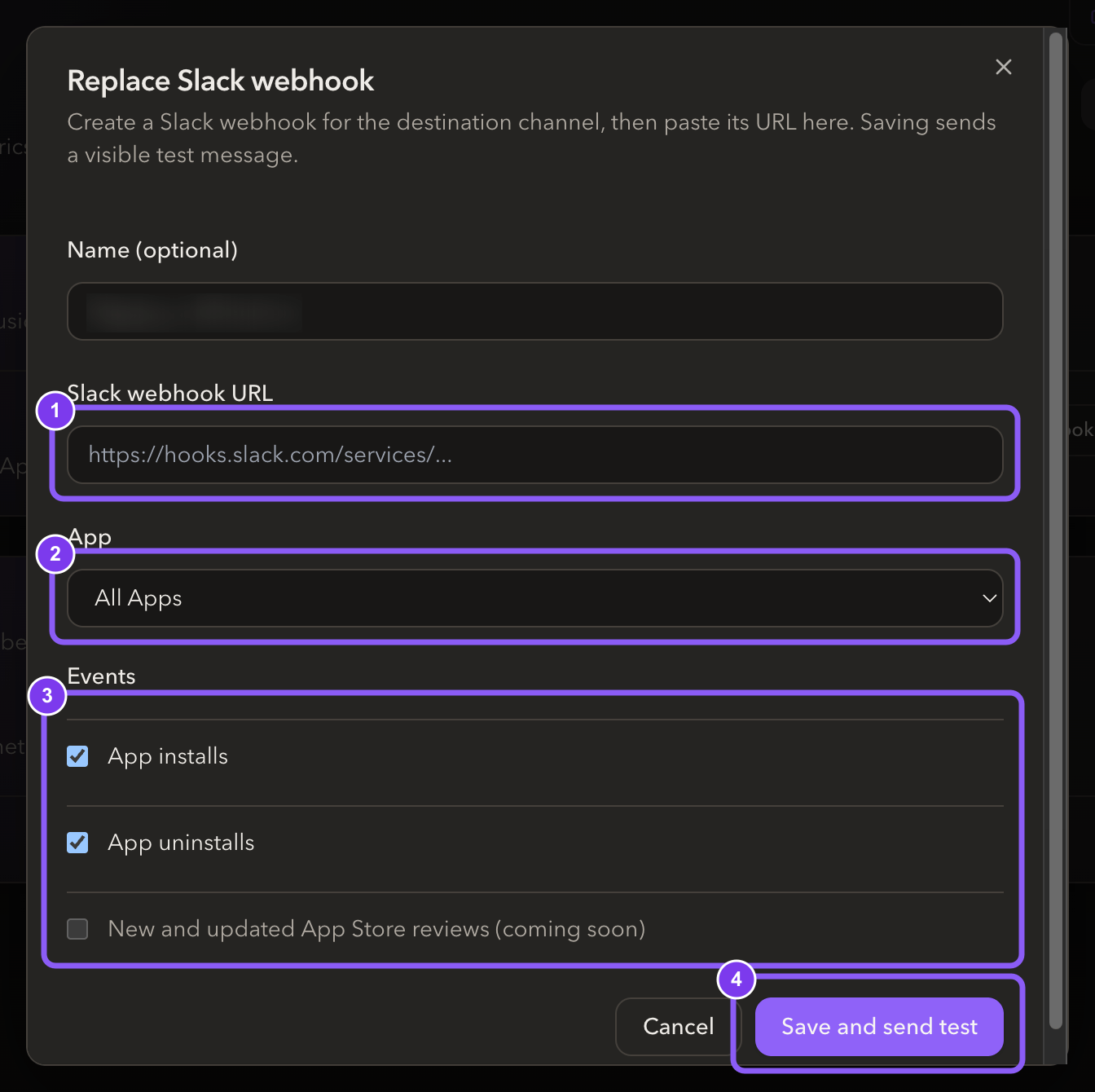
Select Save and send test. Fusionmetrics validates that the URL is an HTTPS Slack incoming webhook and immediately sends a visible connection message. The destination is saved as active only when Slack accepts that message.
Verify delivery
Open the destination channel and confirm the test message says that Fusionmetrics notifications are connected. Then review the Integration card:
- Active means the destination is eligible for delivery.
- The summary shows the destination name, App scope, and enabled event types.
- Last delivered appears after a successful delivery.
- Needs attention means Slack permanently rejected the webhook; replace it with an active URL.

Use Send test at any time to verify the current webhook without waiting for a real install or uninstall.
Repeat Add destination for every additional channel. A destination can cover All Apps or one App. If an active All Apps destination overlaps an app-specific destination, both channels receive matching events and Fusionmetrics shows an overlap warning.
How event delivery works
Fusionmetrics creates notifications from newly observed Shopify Partner events. The selected App and event controls are evaluated separately for every destination, and each event is delivered once to each matching destination.
Install messages link directly to the merchant storefront and separately to the merchant in Fusionmetrics. When the merchant has opened the App through the optional Shopify identity integration, the message can also include the Shopify store plan, country, development-store status, and the first observed staff account. Fusionmetrics waits up to five minutes for that enrichment and then sends the message with the information available.
Trial and subscription messages use the App billing plan reported by the Shopify Partner API. The initial lifecycle set includes trials started, paid subscriptions started, cancellation scheduled or completed, and frozen or unfrozen subscriptions.
Temporary Slack failures and rate limits are retried automatically. A revoked, removed, or otherwise invalid webhook is not retried indefinitely; Fusionmetrics marks the destination as Needs attention instead.
Disabling a destination keeps its configuration but stops new deliveries. Removing it deletes the Fusionmetrics destination; remove or revoke the corresponding webhook in Slack separately if it is no longer needed.
Troubleshoot Slack notifications
The channel is missing in Slack
Join the destination channel with the Slack user authorizing the app. For a private channel, confirm that user is a member, then restart Add New Webhook to Workspace.
Save and send test fails
Confirm the pasted URL starts with https://hooks.slack.com/services/ or the Slack Gov equivalent and contains the complete value. Return to Slack's Incoming Webhooks page and verify that the webhook still exists.
The test works but real events do not arrive
Check that the destination is Active, the correct event type is enabled, and the App selector covers the App whose activity you expect. Fusionmetrics can only notify on activity observed after the destination was created or re-enabled. If All Apps and an app-specific destination overlap, verify both intended channels.
Slack marks the webhook invalid
The Slack app may have been removed, its authorization revoked, or the channel deleted. Create a new webhook for an active channel, then select Edit and paste the replacement URL. Saving the replacement sends another connection test.